Edit the PDF · Build a fillable form · Rebuild it as Word
How to Make a PDF Editable
Three different jobs hide behind that one sentence, and they need three different tools. You might want to change the PDF itself, or to turn it into a form other people can fill in, or to get a document back that you can rewrite. Sort out which one you are asking for and the rest is easy.
Upload a PDF Basic mode is free and needs no account: 10 pages a day and 100 a month, rising to 100 pages a day and 1,000 a month once you sign in. Scanned pages come back as page images, with any text the PDF already carries left editable. AI mode transcribes scans into real editable text — sign in and add a payment method, or paste your own API key below. No watermark.
Converting…
Off by default. Your PDF is deleted on schedule unless you tick this; ticked, it is kept for our engineers to study this conversion. Untick any time.
Options · AI / Basic · your own key
Advanced — bring your own AI provider
Scanned pages are read by an AI vision model. Bring your own provider to convert scanned pages at your provider’s rates and the quality you choose.
Applies to your own key. Scanned pages use AI vision either way.
Used only for this one conversion. Never stored, never logged.
Last updated: 2026-09-16
Three different jobs behind one phrase
A PDF is a description of a printed page. It says: this glyph, in this face, at this coordinate, then the next one. It does not say that six of those glyphs are a heading, or that a dozen short strings and four rules are a table. There is no paragraph in there to edit, which is why "editable" cannot mean just one thing.
What people are actually asking for splits three ways. Some want to fix a date, a price or a typo and otherwise leave the page exactly as it is. Some have a blank form and want readers to type into it without disturbing the layout. And some have a document — a contract, a report, a paper, a worksheet — that they need to genuinely rewrite, which means they do not want a PDF at the end of it at all.
Those three wants pull in opposite directions: the first two keep the fixed page and work inside it, while the third gives it up, because reflowing text is the one thing a fixed page is built not to do.
Which route fits what you are trying to do
| What you want | What you need | What you get |
|---|---|---|
| Fix a few words, a number or a date | A PDF editor — edit in place | The same PDF, same page, same line breaks |
| Add a note, a highlight or a signature | Markup tools in a PDF viewer | Annotations on top of an unchanged page |
| Let other people enter data on a fixed layout | A PDF form editor — add form fields | A fillable PDF; the layout stays put |
| Rewrite the document, reflow it, restyle it | A converter that rebuilds it as Word | A .docx with real paragraphs, tables and styles |
The last row is what this site does, and its section below is the long one. The first three rows are real answers too; if one of them is yours, stop reading after it.
Route 1: change the PDF itself
Editing in place means opening the file in something that can rewrite a text run where it sits. The page keeps its dimensions; you are swapping ink, not restructuring a document. For a corrected figure or a changed date this is the least disruptive thing you can do, and it is the right answer far more often than the internet suggests.
Its limit is reflow. Replace three words with eight and the line has to grow — but the line below it sits at a fixed coordinate and has no idea anything happened above it. Small edits absorb; anything that changes how much text is on the page pushes against the format itself.
Worth knowing before you go looking: a viewer that opens PDFs is not automatically an editor of them. Apple is explicit about the previewer built into macOS — you cannot edit the text of a PDF in it, though its markup tools let you add text, shapes and highlights on top. That distinction is where most "why can't I type into this?" afternoons begin.
Route 2: make it a form people can fill in
A fillable PDF is a specific thing, not a mood. The file carries an interactive layer: named fields, each with a type — text, checkbox, radio button, drop-down, signature — sitting at a rectangle on the page. A reader types into the field; the page underneath never moves. That layer is written into the PDF by a form editor, which is why converting a file back and forth never produces one by accident.
This is the half of the search that most often lands on the wrong page. If your goal is to collect the same six answers from forty people, you want fields, not an editable document, and you want them in the PDF, where everyone's copy comes back the same shape.
The mirror image exists too, and it is useful to know about: Word can hold a fillable form as well. Microsoft documents adding content controls — check boxes, text boxes, date pickers and drop-down lists — to a Word document for exactly this purpose. That matters here because it is what makes the next section possible.
Route 3: rebuild it as an editable Word document
This is the one where "editable" means what most people mean by it: you want to click into a sentence, retype it, and have the rest of the page get out of the way. That is not a PDF feature and no amount of PDF editing produces it. The file has to be rebuilt as a document — headings as heading styles, ruled grids as table objects, columned stretches as sections carrying a column count.
Microsoft's own note on opening a PDF in Word names the constraint in one phrase: a PDF is a fixed file format, and the result might not look exactly the way it did as a PDF. That is not a warning to ignore, it is the honest shape of the job. Structure was never written down in the PDF, so it has to be inferred back from geometry, and inference has a quality.
There is a ten-second test for whether you got a rebuilt document or a picture of one. Click into a paragraph and press Enter. Real body text pushes the rest of the page down; if nothing moves, you were handed positioned boxes or an image. Then open the navigation pane: it fills from heading styles, so an empty pane means your headings arrived as bold text rather than structure. Run both on any conversion, ours included.
Three neighbouring pages go deeper than this one can: how to convert a PDF to an editable Word document compares four routes end to end, converting without losing formatting is about what moves and why, and converting a PDF with Chinese characters covers the font and encoding traps in CJK text.
What happens to a form's fields when it is converted
Here is where routes 2 and 3 meet, and it is the part most conversions throw away. If the PDF already carries that interactive form layer, the fields do not have to be flattened into drawn boxes. On this site they are read off the page and written as the matching Word control: a text field becomes a Word text form field, a checkbox becomes a checkbox form field, a drop-down becomes a drop-down content control that still carries its list of options, and a radio button is carried as a checkbox because Word has no radio control to map it onto. A signature field becomes a labelled placeholder line — Word has no signature field, and inventing one would be worse than admitting it.
The practical effect: a document that is both fillable and rewritable. You can type in the fields, and also add a clause, move a section or reword a question — which is precisely what the PDF the form arrived in will not let you do.
When the page is a scan
All three routes above assume the file contains text. A scanned page does not: it holds pixels, with no glyphs, no coordinates and no font names. Nothing can edit it until something has read it, which is what OCR is for — and reading characters is a smaller job than reconstructing a document. Google documents the scope of its own Drive conversion plainly: bold, italics, font size and line breaks are likely to be retained, while lists, tables, columns and footnotes are not likely to be detected. That gap between "the words came back" and "the document came back" is the whole problem with scans.
Classification here happens page by page, because one file is routinely text throughout and scanned only for its signed appendix. Pages with no text layer go to a vision model that reads the page and its structure together, and the result enters the same builder a text page does rather than being embedded as a picture. That path has its own page: scanned PDF to Word.
Proof
What the third route looks like
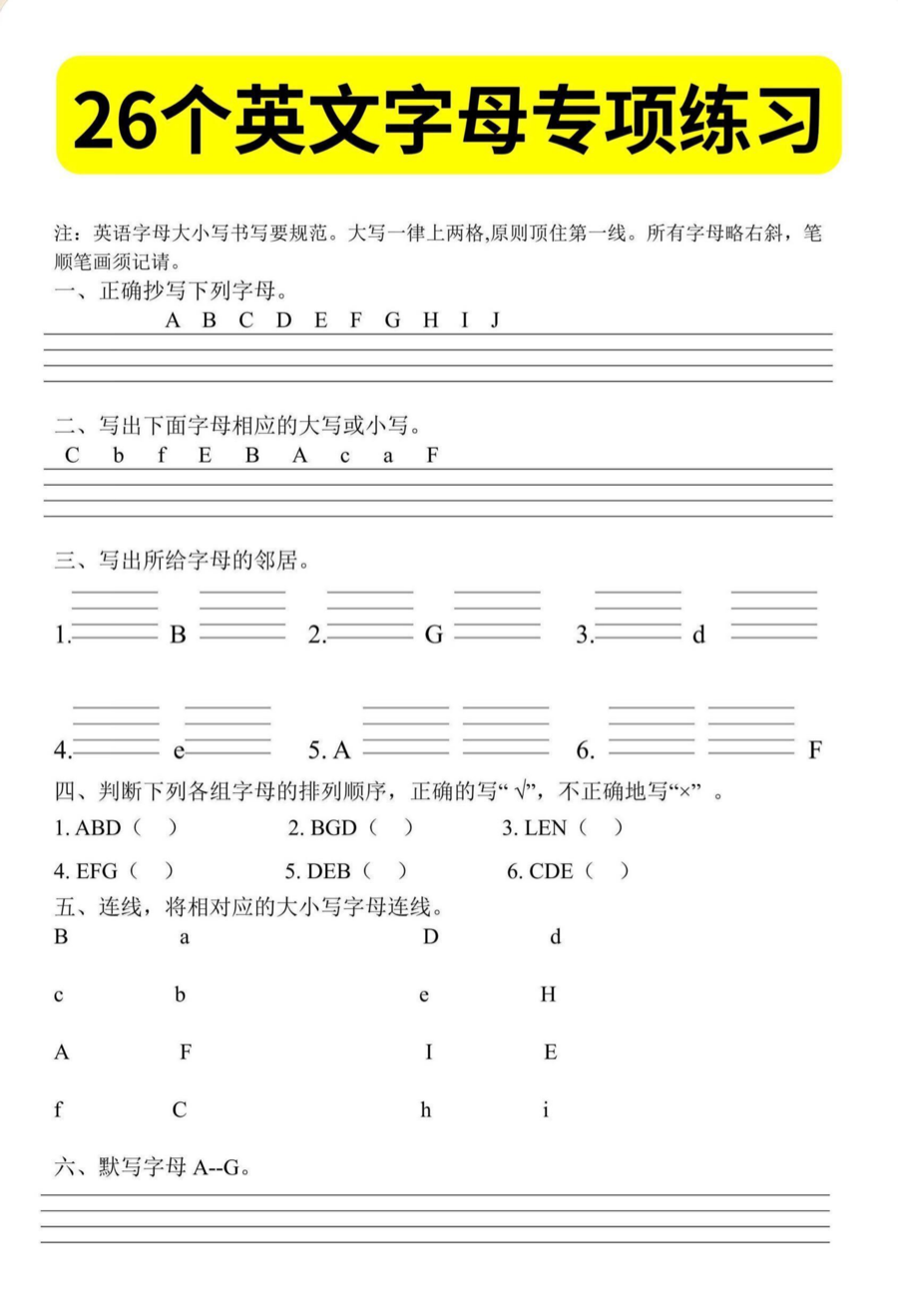
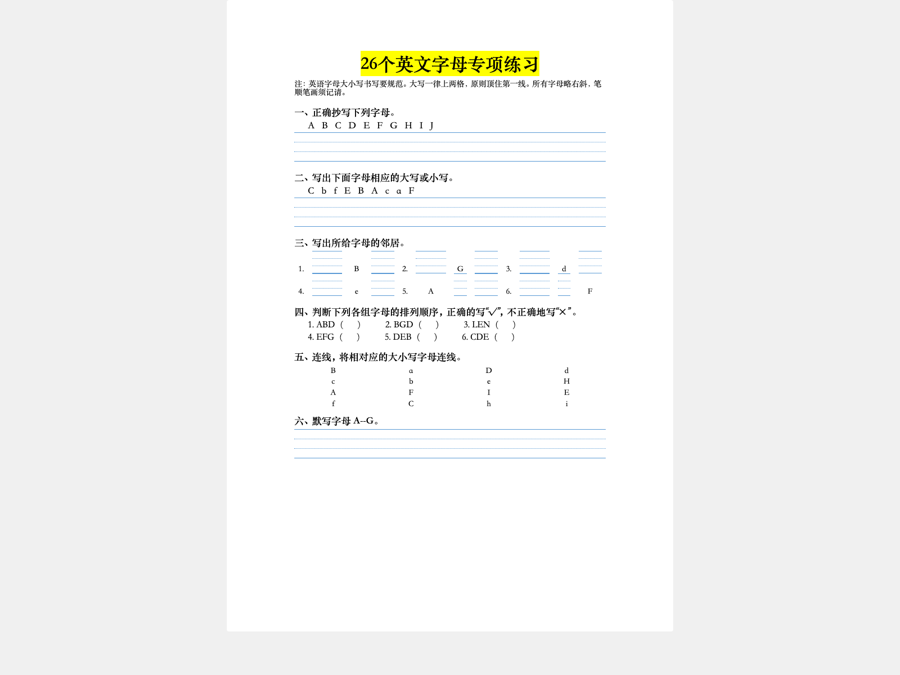
What we actually do, with the limits attached
We only do the third route. When you make a PDF editable as a Word document here, a file that already contains text never touches a model: it is rebuilt straight from the page geometry into Word paragraphs, table objects, sections and — where the PDF has them — real form controls. That costs us nothing to run, which is why there is no watermark and no paywall on it. Basic mode is free and needs no account: 10 pages a day and 100 a month, rising to 100 pages a day and 1,000 a month once you sign in.
In Basic mode scanned pages come back as page images, with any text they already carry left editable. AI mode transcribes them into real editable text: sign in and add a payment method, or paste your own Anthropic, OpenAI, Gemini or OpenAI-compatible API key. AI mode, which transcribes scanned pages into real editable text, requires a signed-in account with a payment method on file and draws on that same account allowance; beyond it, purchased pages are charged. Converting with your own API key is not metered at all. Page packs are listed on the pricing page and are not switched on yet. Converted files are deleted six hours after conversion by default.
What we are not claiming is that a rebuilt document matches the source page down to the last line break. Real paragraphs reflow, and a font name your machine cannot resolve will still be substituted by whatever renders the file — outside any document's control. The narrower, truer claim is the one this search needs: the things you will edit come back as the things Word knows how to edit.
If that is the route you needed, try one page of your own file: make a PDF editable as a Word document.
Sources
Vendor behaviour described above is cited from official documentation, each page checked 2026-09-14. Each vendor is quoted only about its own software.
FAQ
Editable, fillable, converted — questions
Is an editable PDF the same thing as an editable Word document?
No, and the difference decides which route you take. An editable PDF is still a PDF: you are changing ink on a fixed page, one text run at a time, and the page keeps its size and its line breaks. An editable Word document is a rebuilt document: paragraphs with styles, tables with rows, sections with column counts. Rewrite a sentence in Word and the rest of the page moves for you. Rewrite it in a PDF and it does not.
How do I make a PDF fillable rather than editable?
Fillable means the file declares form fields: named boxes, checkboxes and drop-down lists that a reader can type into without touching the layout. That is a property written into the PDF, so it is created in a PDF form editor, not by converting the file. The useful rule of thumb is who does the typing. If you are changing the document, you want it editable. If other people are entering data into a fixed layout, you want it fillable.
Do the form fields in a PDF survive when I convert it to Word?
Here they are rebuilt rather than flattened. On a PDF that already carries an interactive form layer, each field is read off the page and written as the Word control that matches it: text and checkbox fields become Word form fields, a drop-down becomes a drop-down content control carrying its options, and a signature field becomes a labelled placeholder line, because Word has no signature control. The result is a form you can both fill in and restructure.
How do I make a PDF non-editable instead?
That is the opposite job and it is done in a PDF tool, not a converter. Two different mechanisms get confused here. Permissions are a setting stored in the file that asks a reader to restrict editing, and flattening is destructive: form fields and annotations are baked into the page so there is nothing left to edit. Neither one makes text unreadable, and anything that renders can still be photographed or re-scanned.
Can I make a PDF editable without installing any desktop software?
Yes, for two of the three routes. Rewriting a PDF into an editable Word document runs entirely in the browser, with nothing to install and no paid subscription needed — rebuilding is what a converter already does. Light markup and filling in fields a form already declares also need no desktop app; your computer's built-in PDF viewer usually covers both. Only building a brand-new fillable form from scratch genuinely wants a dedicated PDF form editor, since that is not something a converter or a viewer does.
What should I do if I only need to change a few words?
Stay in the PDF. A converter rebuilds the whole document, which is exactly what you want when you are rewriting it and more disruption than you want for a date or a typo. A PDF editor changes that one text run in place and leaves everything else untouched. The tipping point is roughly whether your edit changes how much text is on the page, because that is the moment a fixed layout starts fighting you.